Getting Started
Set up VParamix and open your first docs page.
Quick Start
Open the app via Steam, make sure it is allowed on the public networks and private networks, so it will be able to connect to the phone to receive tracking data.
Use any VParamix parameters in VTube Studio
-

-
Toggle the input source for parameters (Sources/Face Tracking).
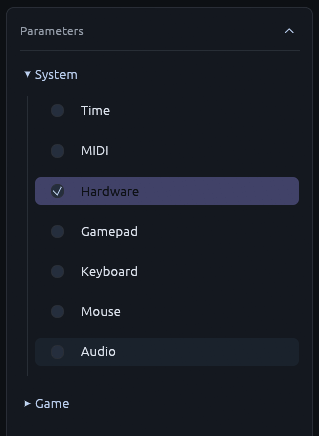
-
Toggle the parameters on output.
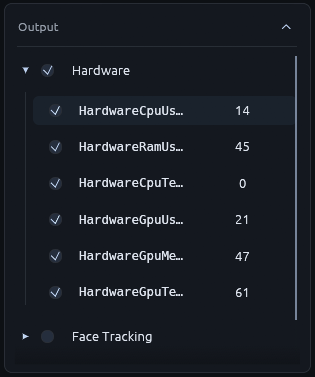
-
Add the new parameters to the VTube Studio Input.
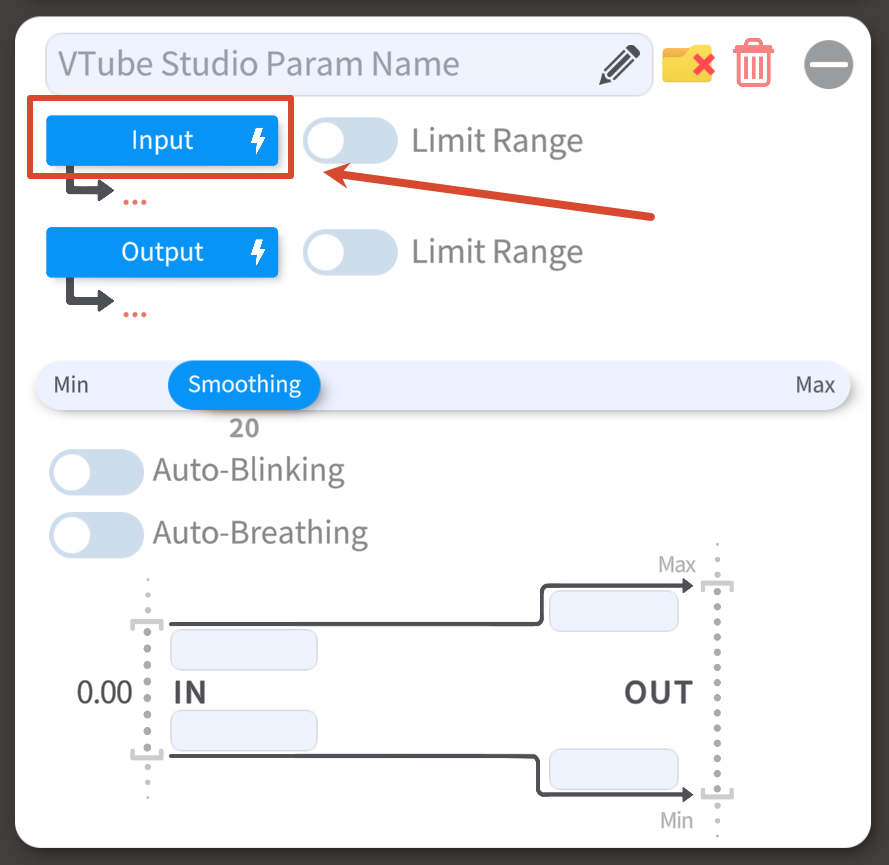
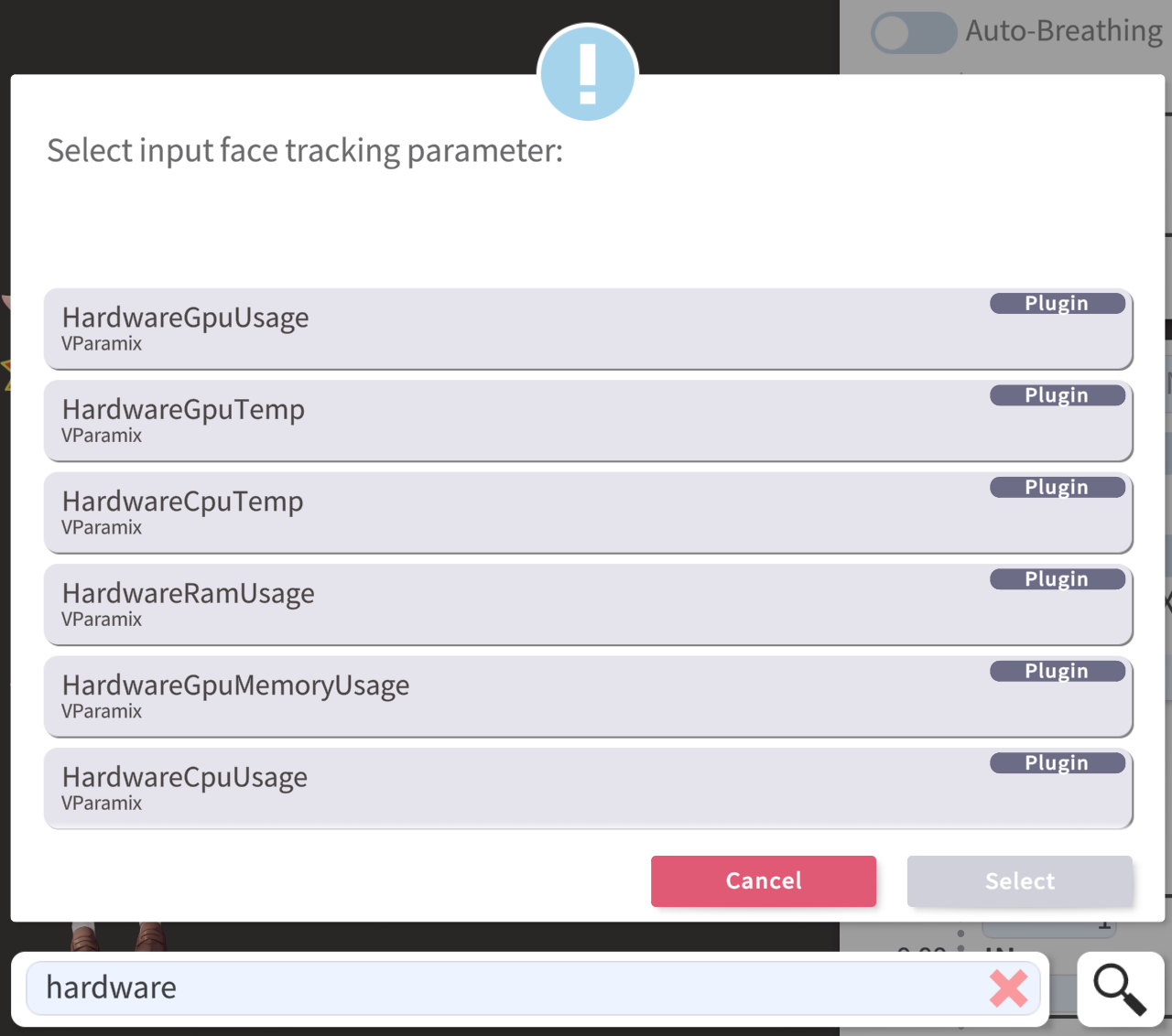
Start Face Tracking
VParamix currently support these following face tracking app:
iOS
Android
PC
- Nvidia Maxine
- Mediapipe
- OpenSeeFace
Facial Motion Capture result:
iOS > Android = PC
- If you have an iOS device that's the best result you can get on the Facial Mocap!
- If you have an PC you may try out
- If you have an Android device, you may have a try with
In a short word, stick with iOS device for best Facial Mocap result!
Once VParamix connected to the face tracking app and start tracking, the face tracking result would show on the model preview!
It is recommend to calibrate the face tracker for more accurate face tracking result!
VParamix should have a default VTS Basic preset available, It should be compatible with any model with basic Live2D Parameters. VParamix comes with several face-tracking preset, the advanced preset will include some extra ARKIT (iOS exclusive) parameters.
Exploring Script
Script is the place that you can have so much fun! It's like a playground for parameters.
VParamix comes with various preset, you can also find out more script comes from the community at the marketplace.